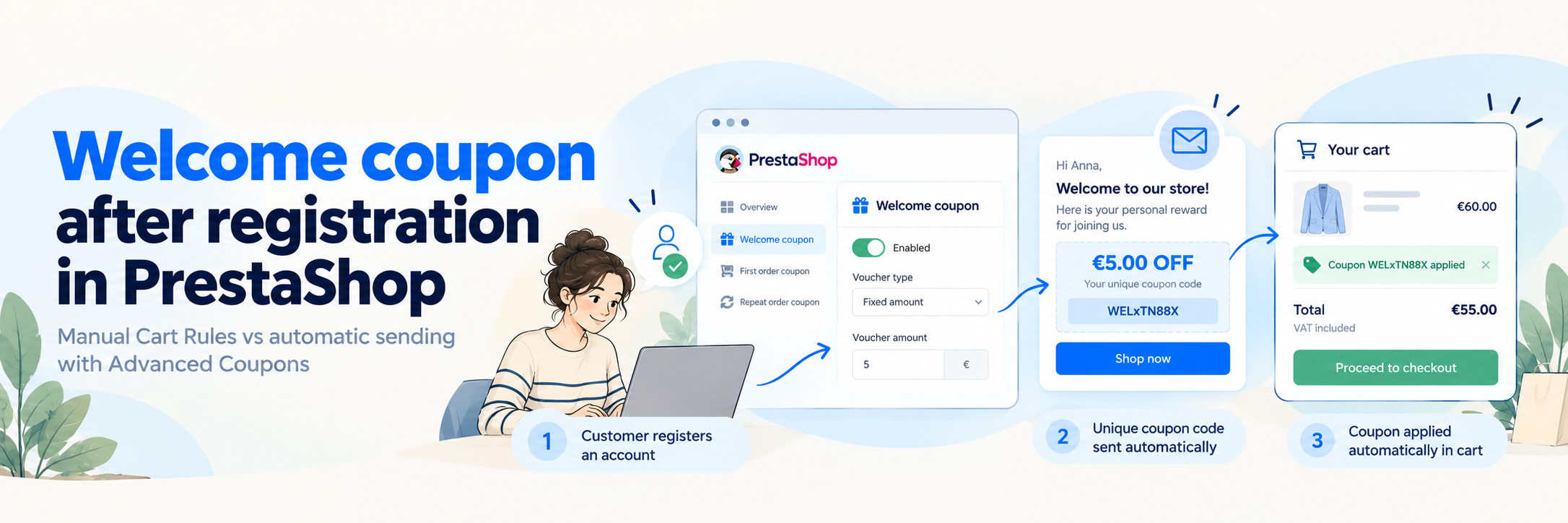
Want to give new customers a discount when they sign up for your PrestaShop store?
For example, you could offer €5 off their next purchase or a 10% welcome discount.
PrestaShop lets you create discount codes with Cart Rules, but it doesn’t automatically generate and email a personal coupon when someone registers.
There are two ways to handle this: create a regular coupon and share it yourself, or automate the process with a module.
Let’s look at both.
Method 1: Create a Welcome Coupon with PrestaShop Cart Rules
If you only need a simple discount code, you can use PrestaShop’s built-in Cart Rules.
Open Catalog → Discounts → Cart Rules (the menu may vary depending on your PrestaShop version) and create a new rule.
You’ll find three main sections:
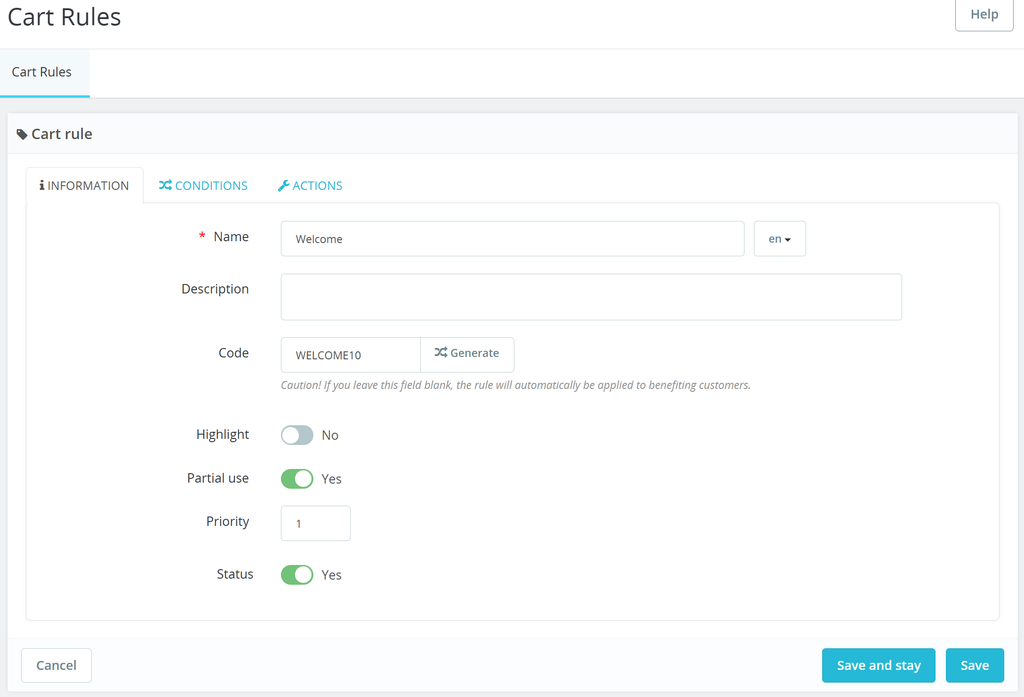
Save the rule, then test the code in your shopping cart.
Now you have a working discount code. You can share it in a welcome message, newsletter, or on your website.
There’s just one limitation: the code isn’t automatically generated when someone creates an account.
You also need a separate way to send it to new customers.
What Can’t Standard Cart Rules Do?
Cart Rules work well for regular promotions, but they don’t provide a complete welcome coupon campaign.
By themselves, they can’t:
- Generate a unique code for every new registration.
- Automatically email that personal code to the customer.
- Trigger the whole process when an account is created.
Method 2: Automatically Send a Welcome Coupon After Registration
I added a Welcome Coupon feature to my Advanced Coupons module for PrestaShop for exactly this situation.
You configure the discount once, and the module generates a unique voucher when a customer creates an account.
Here’s how it works.
Step 1: Enable Welcome Coupons
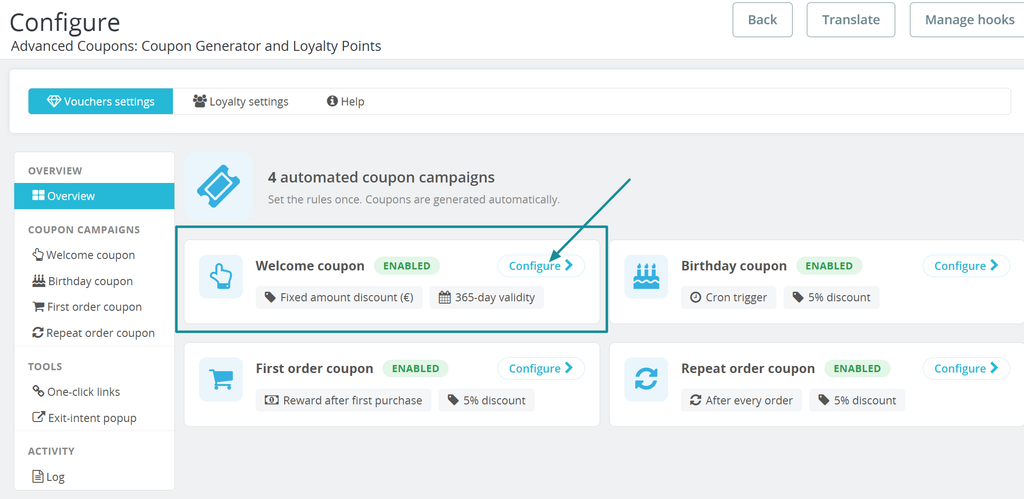
Open the module configuration and go to:
Vouchers settings → Welcome coupon
Enable Generate a voucher when the customer creates an account.
That’s the trigger. The customer doesn’t need to place an order first.
Step 2: Choose Your Discount
You can offer a percentage discount or a fixed amount.
For example, here are the settings from my demo store:
| Setting | Value |
|---|---|
| Discount | €5 |
| Minimum order | €50 |
| Validity | 365 days |
| Coupon prefix | WEL |
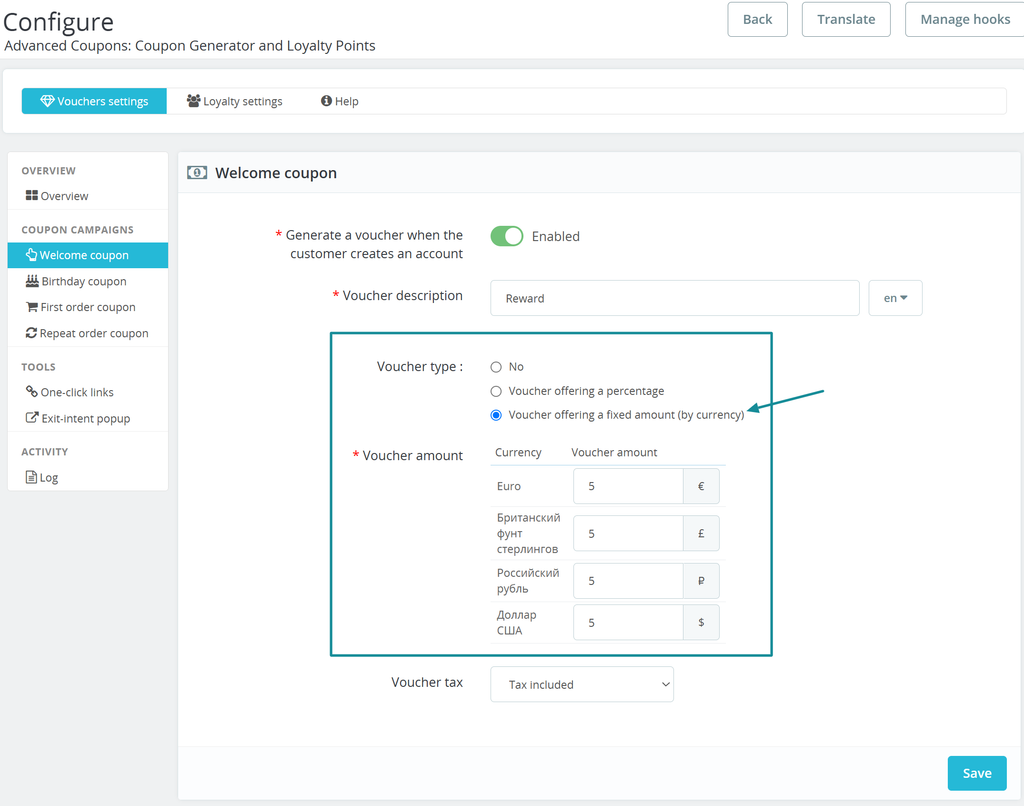
You can also choose different fixed amounts for different currencies.
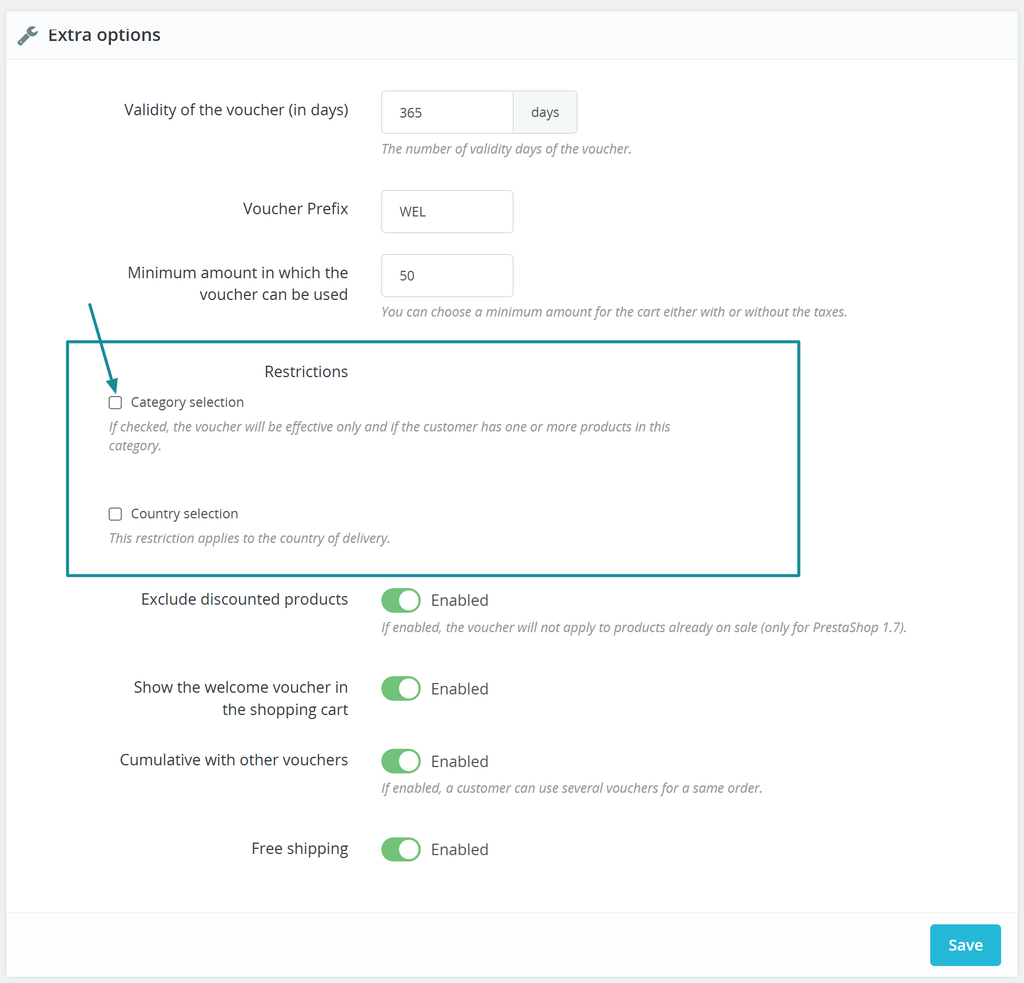
Step 3: Set the Restrictions
There are a few extra options worth checking:
- Exclude products that are already discounted.
- Allow or prevent combining the voucher with other coupons.
- Restrict the offer to selected categories or countries.
- Show the welcome voucher in the shopping cart.
I recommend checking these before enabling the campaign. You probably don’t want a welcome discount to combine with every other promotion in your store.
Save the settings, and your welcome campaign is ready.
What Does the Welcome Coupon Email Look Like?
Generating a coupon is only part of the job. Customers also need to receive it.
Advanced Coupons can automatically send an email containing the customer’s personal coupon code, discount amount, and conditions.
Here’s an example:
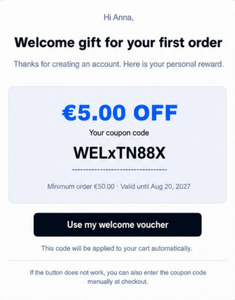
The email can include a one-click link that opens the store and applies the coupon to the customer’s cart.
This means the customer doesn’t have to copy the code and paste it at checkout.
How to Test Your Welcome Coupon
Before enabling the campaign on a live store, I’d test the whole process:
- Create a new customer account with a test email.
- Check that a unique coupon was generated.
- Open the welcome email.
- Click the coupon link.
- Add products to the cart and check the discount.
For our example, the cart needs to meet the €50 minimum.
Also try an order below €50 to make sure the restriction works.
One important detail: a welcome coupon is not the same as a first-order reward.
The welcome coupon is generated after registration. A first-order reward is generated after the customer’s first qualifying purchase.
These are two separate campaigns in Advanced Coupons.
Common Welcome Coupon Problems
If something doesn’t work, here’s where I’d start:
| Problem | What to check |
|---|---|
| Coupon isn’t generated | Is the Welcome Coupon campaign enabled? |
| Email doesn’t arrive | PrestaShop email configuration and spam folder |
| Discount doesn’t apply | Minimum order, expiry date, and restrictions |
| Coupon isn’t visible in the cart | Cart display setting and coupon eligibility |
| Discount conflicts with another offer | Coupon combination settings |
If the coupon exists but the email doesn’t arrive, check your mail configuration before changing the coupon settings.
Frequently Asked Questions
Can PrestaShop send a coupon automatically after registration?
Not with standard Cart Rules alone. You’ll need a module or custom code to generate a personal coupon and send it after registration.
Can I create a welcome discount without installing a module?
Yes. You can create a regular Cart Rule and share the code with new customers yourself.
Is a welcome coupon the same as a first-order coupon?
No. A welcome coupon is triggered by account registration, while a first-order reward is triggered after a purchase.
Final Thoughts
If you just want to share a simple WELCOME5 code, PrestaShop’s Cart Rules are enough.
But if you want every new customer to receive a personal coupon automatically, without manually creating codes or sending emails, you’ll need additional automation.
That’s why I built the welcome coupon feature into Advanced Coupons for PrestaShop.
Set up the discount once, test the registration and email flow, and let the module handle new signups.