A birthday coupon sounds simple: give the customer a discount and send a nice email.
But someone needs to check birthdays every day, generate the coupons, and make sure the emails go out on time. And what if the customer already has another discount? Or has never placed an order?
Let’s look at how to automate birthday coupons in PrestaShop—and a few settings worth checking before switching everything on.
Can PrestaShop Send Birthday Coupons Automatically?
PrestaShop can store customers’ birth dates and lets you create discounts using Cart Rules.
You could create a BIRTHDAY10 code and email it to customers manually.
What standard Cart Rules don’t do is check upcoming birthdays, generate individual coupons, and send them automatically.
For that, you’ll need a module or custom code.
I added a Birthday Coupon campaign to my Advanced Coupons & Loyalty Points module to handle this.
Here’s how it works.
Step 1: Check Your Customers’ Birth Dates
First, make sure your store actually collects birthdays.
PrestaShop supports a date-of-birth field, but depending on your version and configuration, it might not be enabled on the registration form.
Also check whether existing customers have dates of birth in their accounts.
Without that information, there are no birthdays for the module to check.
Step 2: Enable the Birthday Coupon Campaign
Open:
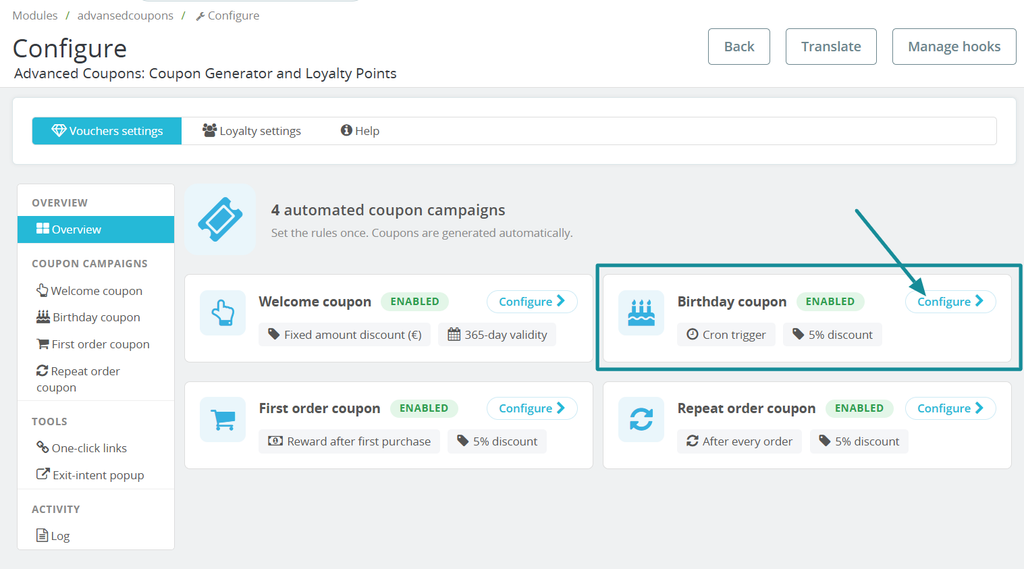
Modules → Advanced Coupons → Configure → Vouchers settings → Birthday coupon
Enable Create a voucher in the customer’s birthday.
Advanced Coupons has four independent campaigns: Welcome, Birthday, First-order, and Repeat-order coupons.
You can enable just the Birthday campaign without using the others.
Step 3: Choose CRON or First Visitor
I included two ways to trigger birthday campaigns.
CRON
The module provides a CRON URL that you can call from a scheduled task on your hosting server.
For example, you can configure the birthday check to run every morning.
This is the option I’d normally choose for a live store. It runs on a schedule, whether someone visits the shop or not.
Just remember that the CRON URL contains a token. Keep it private.
First visitor
Not everyone wants to configure scheduled tasks.
With First visitor, the module checks upcoming birthdays when someone visits the store.
And it doesn’t have to be the birthday customer—any visitor can trigger the check.
That’s convenient, but there’s a trade-off.
If your store has little traffic and nobody visits until the afternoon, the birthday check won’t run first thing in the morning.
For predictable email timing, I prefer CRON.

Step 4: Configure the Birthday Discount
You can offer:
- A percentage discount
- A fixed amount (configurable by currency)
- Free shipping
My demo store uses a 5% birthday discount.
You can also set the voucher description and email subject for each shop language.
Two other settings are worth checking:
Number of days before birthday
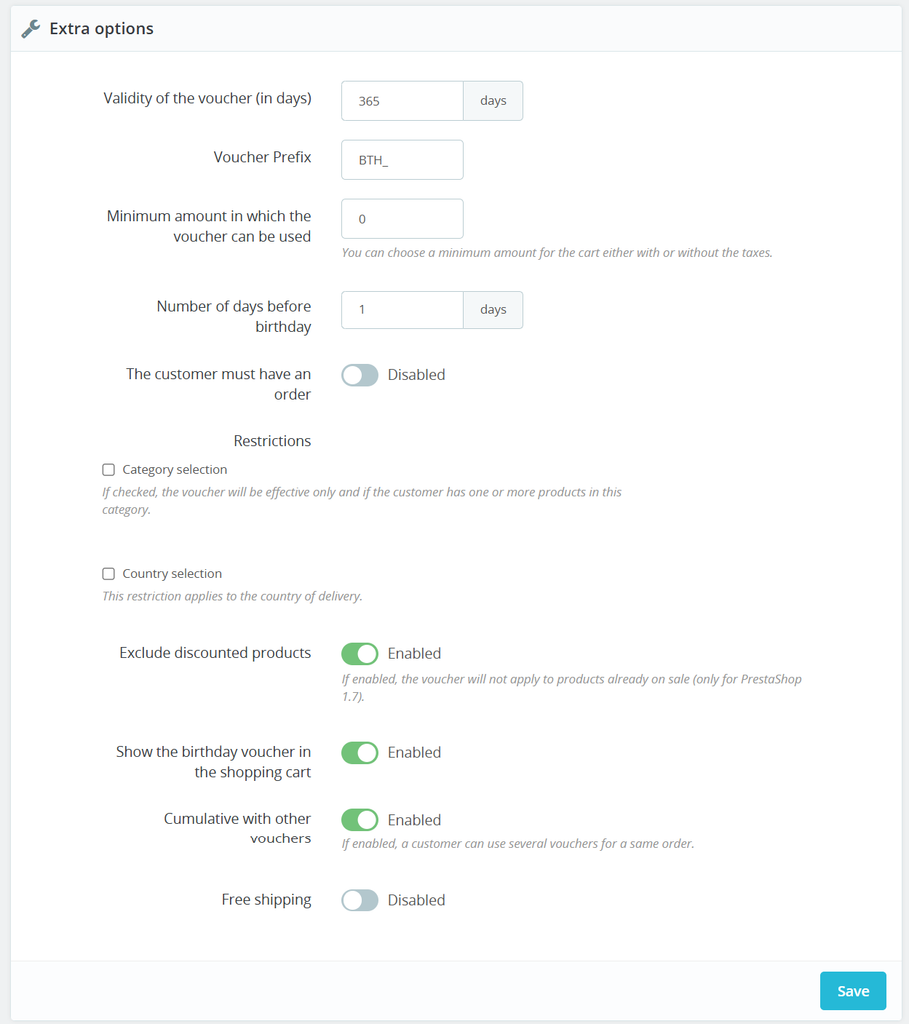
This controls how many days in advance the birthday campaign runs. My demo is set to 1.
Validity of the voucher
You decide how long the coupon remains valid. The demo currently uses 365 days, but for a real birthday campaign, I’d choose a period that fits how frequently customers buy from the store.
Step 5: Check the Coupon Restrictions
This is where I would spend a little extra time.
Can customers combine birthday coupons with other discounts?
Imagine someone already has a 15% coupon and receives another 5% for their birthday.
Should both work on the same order?
The Cumulative with other vouchers setting lets you control this.
Other available restrictions include:
- Minimum cart amount
- Eligible categories and countries
- Excluding already-discounted products, where supported
- Showing the birthday voucher in the shopping cart
For example, you might offer 5% off orders above €50 while preventing the birthday coupon from being combined with another voucher.
Step 6: Check the Email
Generating the coupon is only half the job. The customer also needs to receive it.
Advanced Coupons can send an email containing the customer’s individual coupon code, discount value, and conditions.
Step 7: Test the Complete Flow
Before enabling the campaign on a live store, I’d run through it with a test customer.
- Create a customer with a suitable birth date.
- Trigger the campaign through CRON or First visitor.
- Check that a unique voucher was generated.
- Check that the birthday email arrived.
- Log in as the customer and try using the coupon.
- Test the minimum cart amount and compatibility with other discounts.
If something doesn’t work, start with the basics:
| Problem | What to check |
|---|---|
| No coupon generated | Birth date, campaign status, CRON or visitor trigger |
| Email missing | PrestaShop email configuration and spam folder |
| Discount not accepted | Minimum amount, expiry date, product restrictions |
| Multiple discounts apply | Cumulative with other vouchers setting |
One important detail: a generated coupon and a delivered email are two separate things. Check both.
Final Thoughts
If you only need a birthday discount code to send manually, PrestaShop’s native Cart Rules may be enough.
But if you want individual birthday coupons to be generated and emailed automatically, you’ll need additional automation.
Birthday coupons are one part of my Advanced Coupons & Loyalty Points module for PrestaShop. It also handles welcome coupons, first-order rewards, and repeat-order coupons.
If you only need birthday emails, a dedicated module may be sufficient. But if you want several types of automated rewards, you can manage them in one place.
I’ve also written about automatically sending welcome coupons in PrestaShop and whether coupons actually bring customers back.
Whatever approach you choose, test the timing, coupon restrictions, and email delivery before leaving the campaign to run on its own.