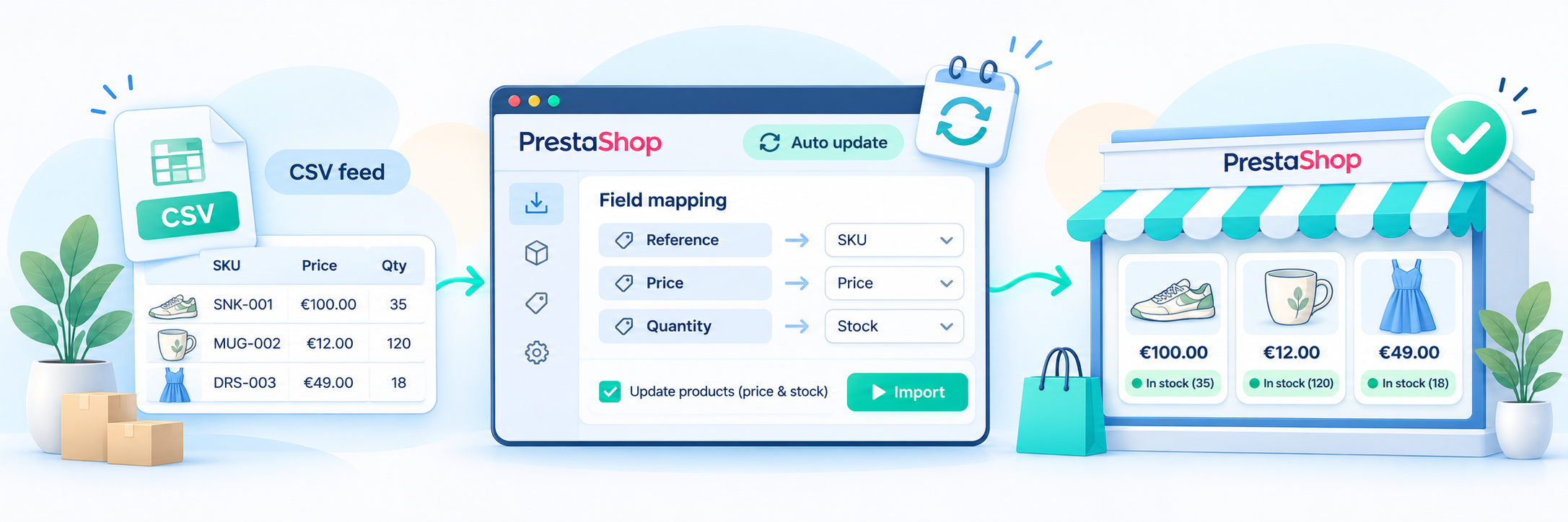
A supplier sends you a CSV file every morning with updated prices and stock quantities. Your PrestaShop store already contains these products, so you don’t need to import the catalog again. You just need to update the existing records.
Doing this manually once is manageable. Doing it every morning gets tedious, especially when the supplier changes the file structure or your products have combinations.
I would start with three things: a reliable product identifier, a reusable column mapping, and a clear rule for handling missing products. Once these are correct, automating the import is relatively straightforward.
Match products by reference, not by name
Imagine your supplier sends this file:
| Supplier code | Price | Stock |
|---|---|---|
| MUG-001 | 12.90 | 45 |
| LAMP-024 | 39.50 | 8 |
| BAG-108 | 54.00 | 0 |
The supplier code should identify an existing product in your store.
PrestaShop supports several identifiers, including product reference, EAN, and supplier reference. Which one you use depends on how your catalog is organized.
I prefer references when they’re consistently maintained and unique. Product names are a weaker choice: they can change, be translated, or be shared by several products.
Before importing, check that your supplier’s identifiers actually match those stored in PrestaShop. An identifier that matches multiple records can update the wrong products.
Map the supplier’s columns instead of editing the CSV
One supplier puts the SKU in column 1. Another puts it in column 5, uses semicolons, and includes ten additional fields you don’t need.
You shouldn’t have to rebuild these files every time.
In Stock & Prices CSV Updater for PrestaShop, the Field mapping settings let you choose the matching identifier, specify the column numbers for price and quantity, and configure the field separator.
For example, suppose the reference is in column 3, the price in column 6, and the stock quantity in column 8. Configure those positions once and reuse the mapping for future imports.
You can leave fields you don’t need unmapped. A stock-only update shouldn’t overwrite product prices, EANs, or weights.
The module updates matching existing records. An unmatched reference isn’t a reason to create another product — it’s something to investigate in the import report.
Combinations need their own identifiers
Here’s a detail worth checking before your first import.
A T-shirt might have two combinations:
| Reference | Quantity |
|---|---|
| TSH-BLK-M | 12 |
| TSH-BLK-L | 0 |
Both belong to one product, but their stock quantities are separate. Matching the parent product isn’t enough.
For this case, configure a Combinations import and identify each combination by its own reference or another supported identifier.
Prices are slightly more complicated.
In PrestaShop, a combination’s price can be stored as an impact on the product’s base price. If the base price is €20 and the combination adds €5, the customer sees €25 before taxes and discounts.
If your supplier sends €25 as the final selling price, importing that value directly as a €25 combination impact would be incorrect.
Check what the supplier’s price column represents before mapping it.
Missing from the CSV doesn’t always mean out of stock
This is one setting I would never enable without understanding the supplier’s file.
Suppose your store has 500 products from a supplier, but today’s CSV contains only 420.
Should the other 80 products have their quantities set to zero?
Only if the supplier provides a complete inventory snapshot and confirms that missing products should be treated as unavailable.
Some suppliers send only records that changed since the previous update. In that case, a missing row simply means there’s nothing new to report.
For partial files, leave quantities of unmatched products unchanged.
Confusing these two formats can create a much bigger problem than an outdated stock quantity.
Run the import manually before enabling cron
Once the mapping is configured, the next step is choosing where the CSV comes from.
Stock & Prices CSV Updater supports a feed URL, a local file, or files placed in an FTP folder. You can run imports manually or configure scheduled execution through cron.
For a supplier that publishes an updated file at the same URL each morning, the workflow is simple: configure the mapping, select the feed URL, and schedule the import.
But I wouldn’t enable automatic imports immediately.
Start with a small sample and check the results in PrestaShop. Include a regular product, a product with combinations, and a row with zero stock.
After importing, verify that:
- The expected products and combinations were updated.
- Prices and quantities contain the correct values.
- Unrelated fields remained unchanged.
- Missing or duplicate identifiers appear in the import report.
The module also supports email notifications with import statistics and problem reports. They’re particularly useful once imports run without someone watching the Back Office.
Keep a database backup before the first full import.
When is a dedicated CSV updater worth using?
PrestaShop already includes CSV import functionality, and for occasional catalog updates it may be sufficient.
A dedicated updater becomes useful when you regularly receive files with the same structure and need to update existing records without repeating the import setup.
With Stock & Prices CSV Updater, you can configure the field mapping once, import from a supplier feed, schedule updates, and review the results.
My recommendation is to get one manual import working correctly before introducing cron. If the identifiers, column mapping, and stock-handling rules are right, you’ve already solved the most important part of the problem.