You installed PrestaShop MCP Server, connected your account and copied the server URL.
But how do you know it actually works?
Before connecting an AI application, you can test the server directly with MCP Inspector. It lets you see the available tools, send a request and inspect the response.
When I tested my store, this helped me work through two separate problems: an authorization header that was not reaching PHP, and a product tool that could not run because PrestaShop Webservice was disabled.
Here is the setup that eventually returned real products from my test store.
What MCP Inspector does
MCP Inspector is a testing client. You choose a tool and provide its parameters yourself. No AI subscription or model API key is needed for the checks below.
For example, instead of asking an AI to “show me five products,” you select Get Products, set a limit of five and run it.
This makes it easier to see which part works: the connection, tool discovery or the actual request for store data.
The screenshots in this guide use MCP Inspector 2.10.1. Other versions may look different.
1. Launch MCP Inspector
Install Node.js on your computer if you do not already have it. The Inspector v2 documentation requires Node.js 22.19.0 or later.
Open a terminal — PowerShell on Windows is fine — and run:
npx @modelcontextprotocol/inspectorAccept the package installation prompt if it appears. Open the local address shown in the terminal if the interface does not open automatically, and keep the terminal running during the test.
Inspector runs on your computer and connects to the MCP endpoint in your store.
2. Add your PrestaShop server
This guide assumes the PrestaShop MCP Server module is already installed and its onboarding is complete.
Copy the Server URL from the module configuration. It will look something like:
https://your-store.example/mcp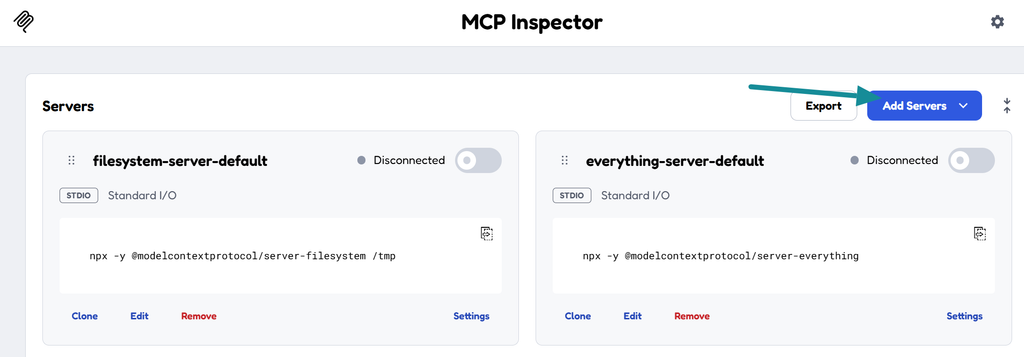
In Inspector, use Add Servers to add your connection:
- Name: a recognizable label, such as PrestaShop.
- Transport: Streamable HTTP.
- URL: the address copied from your module.
Use the module’s exact URL.
3. Configure token authentication
PrestaShop MCP Server supports OAuth and member tokens. For this test, I used a token generated from the module’s Members page.
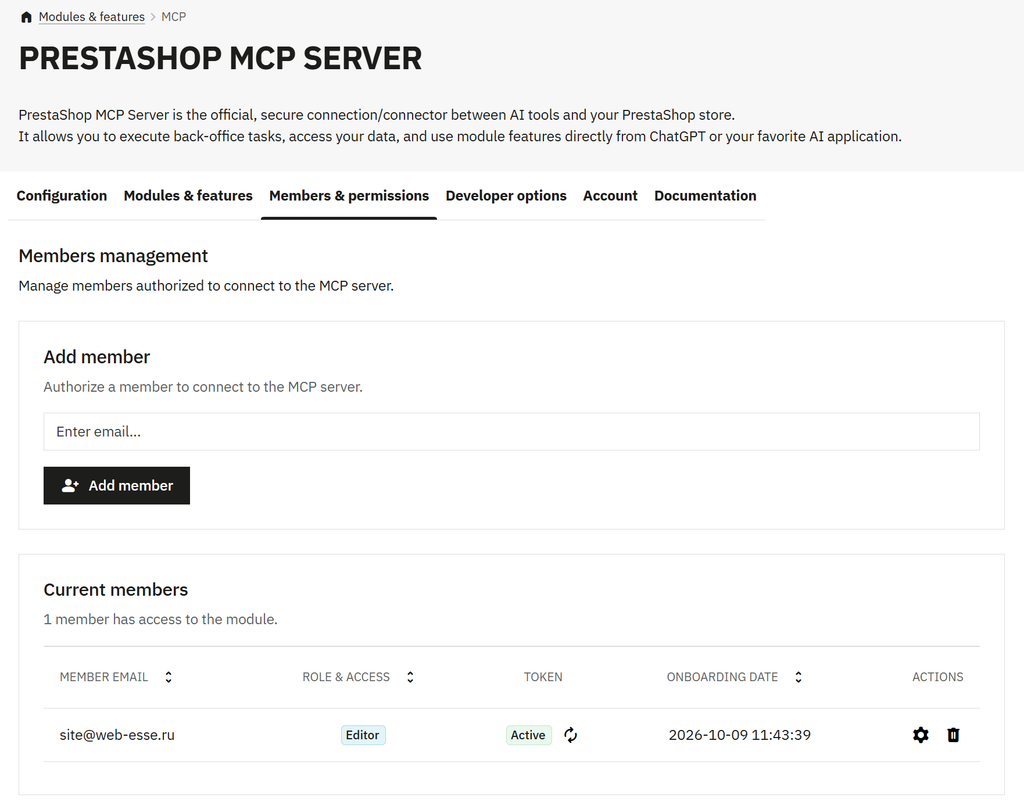
For a reading-only test, choose a member with the Viewer role.
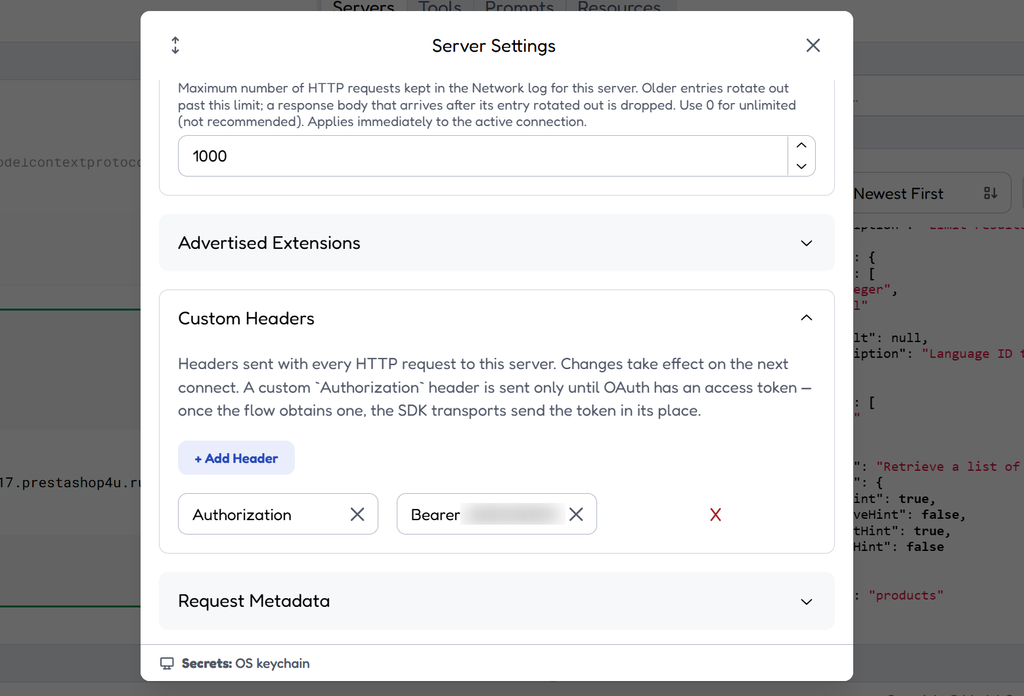
Open Settings on your server card in Inspector, find Custom Headers, and add:
| Header | Value |
|---|---|
Authorization | Bearer YOUR_TOKEN |
Replace YOUR_TOKEN with the full token. Keep one space after Bearer; do not add quotation marks.
Reconnect after changing the header: Inspector applies these settings on the next connection. Keep the token hidden in screenshots.
I initially encountered an OAuth Issuer mismatch error involving https://oauth.prestashop.com and the same address with a trailing slash. Token authentication let me continue testing through a separate supported method. It did not establish that the OAuth issue was fixed.
4. If you get “Missing Authorization header”
My first attempt with a token still returned:
{
  "jsonrpc": "2.0",
  "id": null,
  "error": {
    "code": 401,
    "message": "Missing Authorization header."
  }
}
In Inspector’s Network panel, the outgoing POST request included an authorization header. Its value appeared as [REDACTED], which simply meant Inspector was hiding it.
The module was reporting that it could not see that header.
My store uses Apache. Following the PrestaShop MCP troubleshooting documentation, I backed up the store’s root .htaccess file and added:
SetEnvIf Authorization "(.*)" HTTP_AUTHORIZATION=$1I placed it before the # ~~start~~ marker, outside PrestaShop’s automatically generated section.
After saving the file and reconnecting, Inspector showed Connected and loaded the tools.
This was the fix for my Apache setup. It is not a universal solution for every 401 error, and Nginx does not use .htaccess. If the change causes a server error, restore the backup and check with your hosting provider.
5. Run your first product request
Open Tools in the top navigation and select Get Products:
ps_mcp_tools-get_productsEnter these values in the parameter form:
| Field | Value |
|---|---|
display | [id,name,price,reference,active] |
limit | 5 |
sort | id_ASC |
Leave filter empty and langId unset for this first test.
If you use the JSON argument editor, the equivalent is:
{
  "display": "[id,name,price,reference,active]",
  "limit": "5",
  "sort": "id_ASC"
}
Run the tool. This request reads up to five products and returns only the selected fields.
Connected, but the tool still fails?
That happened in my test. The tool returned:
PrestaShop webservices are not enabled.
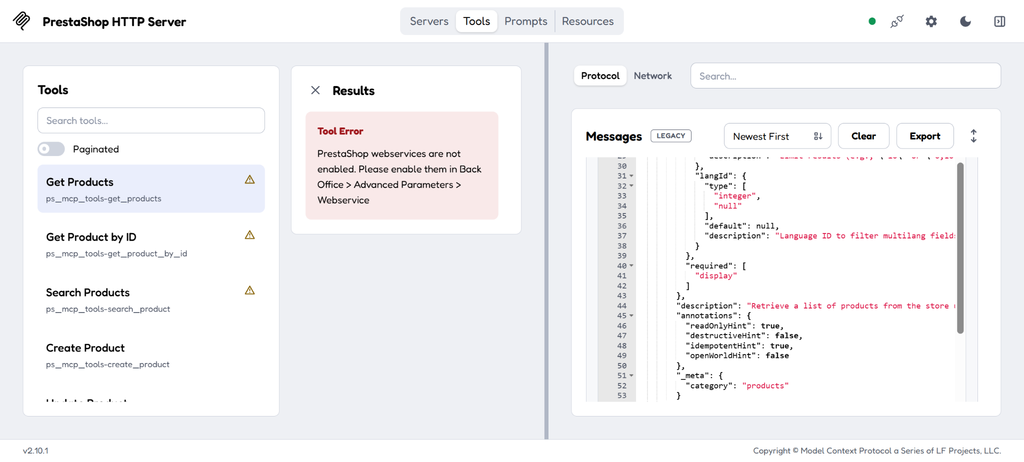
The message pointed to Back Office → Advanced Parameters → Webservice.
I enabled PrestaShop Webservice, saved the setting and repeated the same tool call. It then returned the products.
Connected confirms the connection. A successful tool call confirms that the operation you tested works too.
6. Check the result
My response contained five products. Here is one product object from that response:
{
  "id": "1",
  "reference": "demo_1",
  "price": "23.900000",
  "active": "1",
  "name": [
    "Summer Dress",
    "Summer Dress",
    "Summer Dress",
    "Summer Dress",
    "Summer Dress"
  ]
}
The repeated names came from the multilingual field returned without a language filter. To request a particular language, use Get Languages to find its ID, then pass it as langId.
Compare the returned IDs, references and names with your back office. That gives you a concrete check that the request is reading the expected catalog.
What about Prompts?
My Inspector interface also had a Prompts tab, but its list was empty.
MCP prompts are reusable instruction templates supplied by the server. The search field looks for those templates; it is not a chat box for asking questions about your store.
An empty Prompts section did not prevent my product tools from working.
What this test proves
At this point, I had verified token authentication, tool discovery and a product read request.
That is a useful starting point for connecting an AI application. The application will need its own authentication setup, but I now have a working request to compare against if something goes wrong.