I installed PrestaShop MCP Server on a development store because I wanted to test a simple read-only MCP tool.
The store was already connected to PrestaShop Account. The required modules were installed. The domain was available over HTTPS.
Then the setup stopped at Step 3 — Account & data sharing — with this message:
Error retrieving context. Please try to reset or reinstall the module.

Reinstalling the module did not immediately explain what was wrong.
This is one of the confusing parts of setting up MCP in PrestaShop: the visible error often appears in one place, while the actual problem may be related to the account connection, hosting configuration, Cloudflare, store accessibility or user permissions.
This article collects the problems I found while setting up PrestaShop MCP Server and the checks that helped me understand where the problem was.
If you are starting from scratch, see How to Connect PrestaShop MCP Server to an AI Application.
First, find the step that is failing
Where the error appears helps narrow the search.
| What happens | Start here |
|---|---|
| Account & data sharing fails | PrestaShop Account and the failed browser request |
| AI cannot connect | MCP URL, network access and authorization |
| Connection succeeds, but tools are missing | Modules & Features and tool discovery |
| A tool appears but fails when called | Its inputs, permissions and server logs |
Save the exact error and note the time before changing settings. This makes it much easier to match your attempt to an entry in the logs.
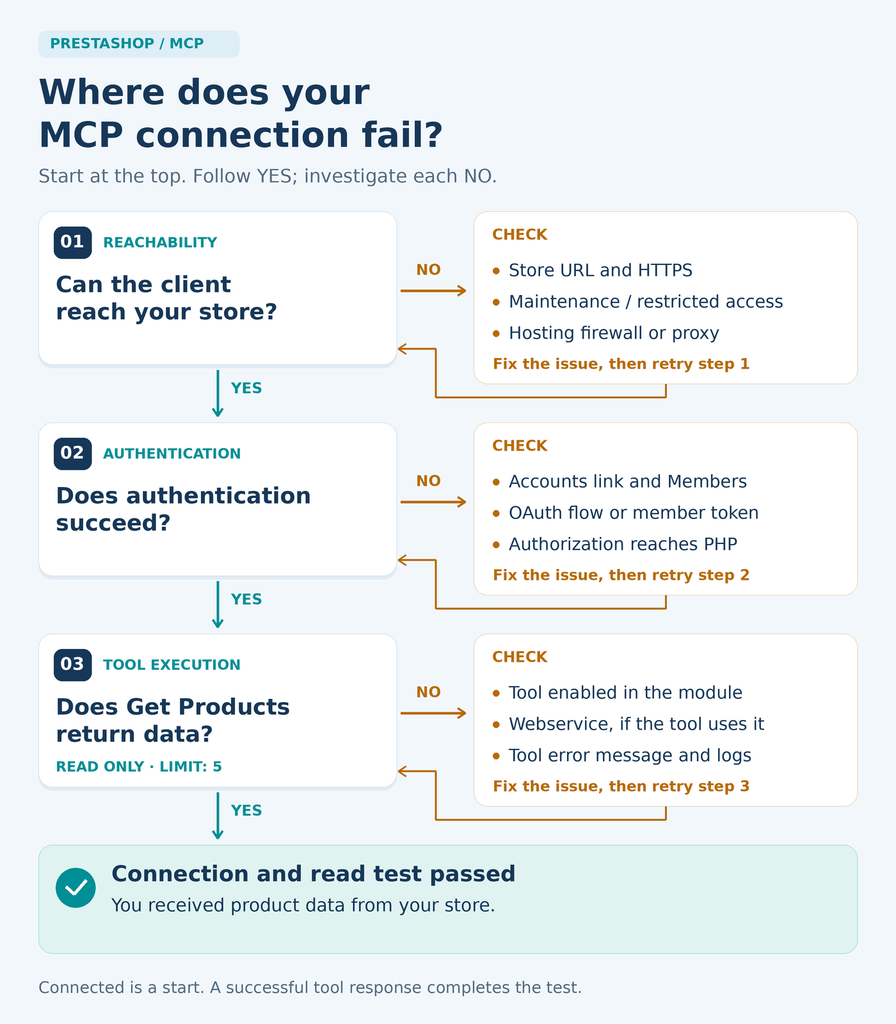
1. “Error retrieving context” during setup
This message alone does not identify a cause.
Open your browser’s Developer Tools, select Network, then repeat the failing setup step. Inspect the failed request: its address, status and response body.
A response can be misleading. In a PrestaShop community discussion, a user reported a verified store and a request returning 200 OK. However, the body contained an HTML page from the hosting firewall instead of the expected JSON.
The discussion concerns PrestaShop Account integration in Checkout, so it does not establish a specific MCP bug. It does show why checking only the status code can miss the problem.
My first checks would be:
- Does PrestaShop Account show the expected account and store?
- Does the request return JSON, a login page or a security challenge?
- Is there a matching blocked request in Cloudflare or hosting logs?
- Does the server log show a PHP error at the same time?
If you see a CORS error, keep the full message. Ask your host or developer to inspect the affected request and preflight response. Avoid copying a blanket “allow all origins” rule from a forum.
After a fix, repeat the same setup step. Look for both a valid response and successful completion in the module.
2. The store is verified, but MCP access is denied
Store verification and permission to use MCP are separate checks.
Open MCP Server → Members and check the email of the PrestaShop Account used during OAuth sign-in.
It does not need to match your Claude or ChatGPT email. MCP checks the identity returned by PrestaShop authorization.
If your browser has signed in to another PrestaShop Account, sign out and retry with the authorized account.
For reading data, use Viewer. Write operations require Editor access; a rejected write request under Viewer can mean the permission checks are working correctly.
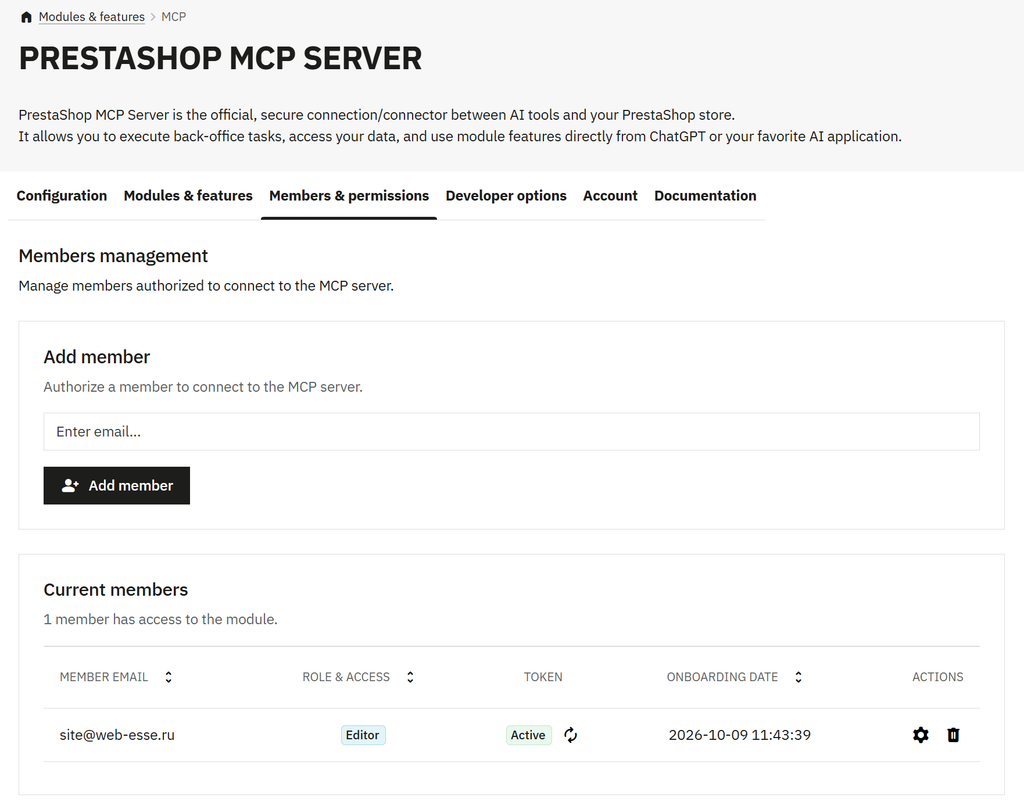
Both OAuth and token authentication require an authorized member. See the PrestaShop MCP security documentation for the permission model.
3. “OAuth not implemented”
PrestaShop documents this as an authorization-flow problem. Check access to OAuth discovery URLs under .well-known/, Cloudflare rules, maintenance mode and whether your server forwards the Authorization header.
An additional password on a development site can also interrupt access.
Ask your host to inspect the failed request before editing server rules. Apply a targeted correction, then retry OAuth. The official troubleshooting guide includes an Apache configuration example; it should not be copied unchanged into an Nginx setup.
4. The connection works, but no tools appear
Open Modules & Features. Check that the module providing the tools is active and that its relevant features are enabled.
For the default store tools, check PrestaShop MCP Tools.
If you recently installed or changed a custom tool, run Manual Tool Discovery from Developer Options. Refresh the tool list in your AI client too, if it offers that option.
For custom development, inspect class loading and registration errors before assuming that reconnecting will help.
Also check what the tool actually supports. A connection that can retrieve products does not necessarily provide a ready-made report of products with no sales in 90 days.
5. “LanguagesTool not found”
For this documented class-loading error, PrestaShop recommends resetting ps_mcp_tools, then clearing the PrestaShop cache if the error persists.
Record the module version and settings first; a reset may reinitialize configuration.
Afterwards, repeat discovery and try a small read request. If it still fails, capture the full PHP exception for investigation.
6. A tool returns “Internal error”
Record the tool name, inputs and time of the request. Enable Debug Logs in Developer Options and inspect the module’s .mcp/logs directory alongside PHP logs.
Retry with the smallest valid read request—for example, one known product ID if the tool accepts it.
This helps distinguish a general execution failure from a problem with particular data or parameters.
When developing your own tool, return a useful error to the client and keep sensitive diagnostic details in server logs.
Test independently with MCP Inspector
MCP Inspector lets you connect to the server, inspect its tools and call them manually.
With a compatible Node.js version installed, launch it using:
npx @modelcontextprotocol/inspectorOpen the local URL printed in the terminal. Configure your store’s remote endpoint, complete authentication and test a read-only tool.
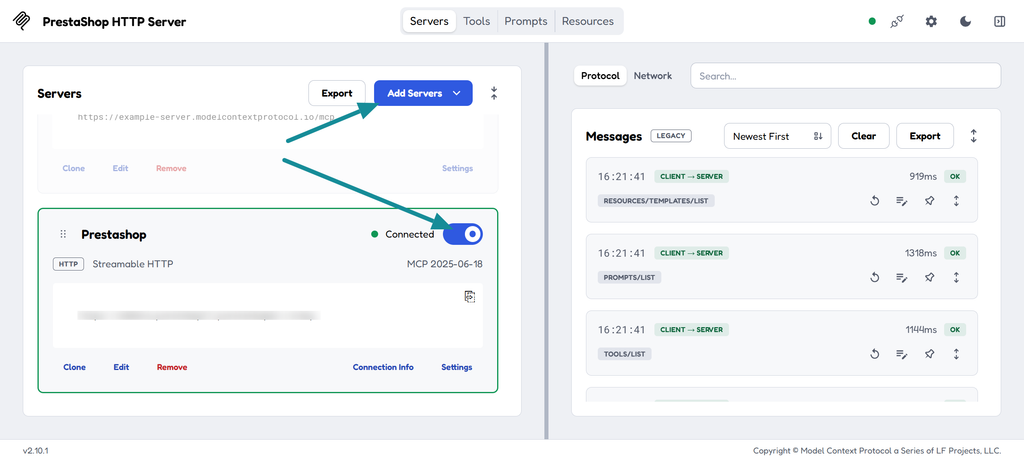
If that call succeeds, you have verified that particular tool through Inspector. It does not guarantee that a cloud AI client can connect: its network route and authentication flow may differ.
If both clients fail, compare their errors. If only the AI application fails, focus next on its authorization, tool selection and network access.
Frequently asked questions
Can the store open in my browser but still be unreachable to AI?
Yes. Your browser may have an allowed IP address or an existing login. Check firewall logs for the AI client’s attempts. PrestaShop lists client user-agent examples in its troubleshooting guide; use current provider guidance when adjusting access rules.
Do I need the token generated in Members?
Not when using OAuth. For a client configured for token authentication, supply it through that client’s authorization settings. Regenerating the member token invalidates the previous one.
Why is there no custom MCP option in my AI application?
Check the application’s current plan requirements, interface and workspace permissions. Missing client functionality does not establish a problem with your PrestaShop installation.
What should I include in a support request?
Include PrestaShop and module versions, the AI client, authentication method, failing step, exact error and timestamp. Add relevant sanitized responses or log entries. Remove tokens, passwords and customer data.