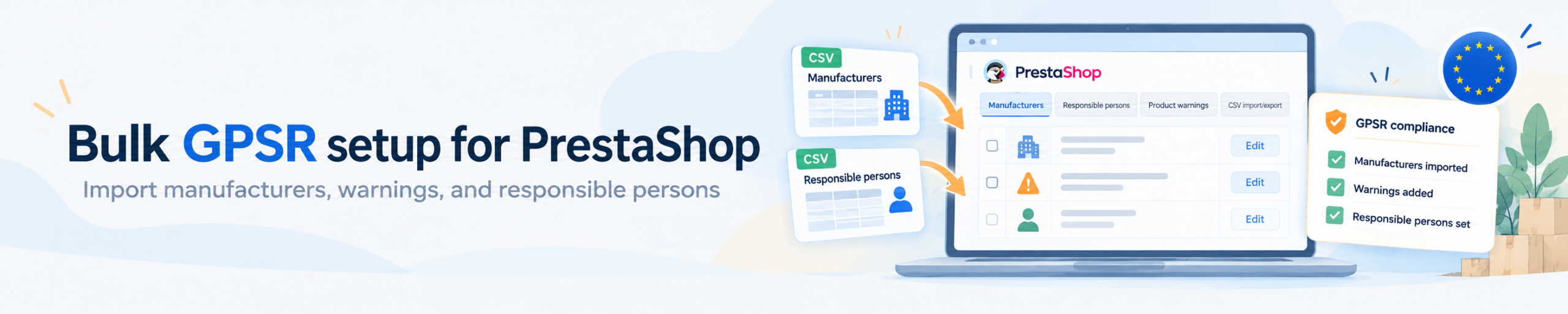
If you have a PrestaShop store with hundreds of products, adding GPSR information manually can quickly become a headache.
Imagine you have 500 products from 15 manufacturers. You need to check manufacturer contact details, assign EU responsible persons where required, and add safety warnings in several languages.
Editing every product separately? That’s a lot of unnecessary work.
A better approach is to organize your GPSR data first, then import it using CSV files.
In this guide, I’ll show you how to prepare that data, avoid common import problems, and check that nothing important is missing.
What GPSR Information Do You Actually Need?
The EU General Product Safety Regulation (GPSR) includes requirements for information displayed in online product offers.
Depending on the product and applicable rules, this includes:
- Manufacturer details: name, postal address, and electronic contact address.
- EU Responsible Person: contact details for the relevant EU-based responsible person when the manufacturer is outside the EU.
- Product identification: information that helps customers identify the product.
- Safety warnings: warnings and safety information that apply to the product, in the appropriate language.
You can find the official requirements in Article 19 of Regulation (EU) 2023/988.
One important thing: not every product needs additional safety warnings. You shouldn’t add random warnings just to fill an empty field.
Organize Your GPSR Data Before Importing
The biggest time-saver isn’t the CSV import itself. It’s how you organize the information.
Let’s go back to our example: 500 products from 15 manufacturers.
You don’t need to enter the same manufacturer details 500 times.
Instead, separate your information into three groups:
| Data | Where it belongs |
|---|---|
| Manufacturer name, address, email | Manufacturer |
| EU Responsible Person | Linked to the relevant manufacturer |
| Safety warnings and instructions | Individual product and language |
This structure helps avoid duplicated information.
For example, if one manufacturer changes its email address, you update the manufacturer record rather than editing every product from that brand.
The same goes for EU responsible persons. One responsible person may cover several manufacturers, so it makes sense to store that information once and reuse it.
Safety warnings are different. They often belong to a specific product and may need translations.
Prepare Manufacturer Information for CSV Import
I recommend starting with manufacturers because many products can share the same contact information.
If your store already contains manufacturer records, export them first. It’s easier to update existing data than create everything again.
For a GPSR import, useful fields include:
| Field | Purpose |
|---|---|
manufacturer_name | Identify the manufacturer |
email | Manufacturer’s electronic contact |
is_eu_established | Identify manufacturers established in the EU |
responsible_person_name | Link to an EU responsible person |
These are the fields used by the manufacturer CSV importer in my PrestaShop GPSR module. Other importers may use different names.
What about the postal address?
PrestaShop already has native manufacturer address records. You can reuse those rather than storing another copy of the same address in your CSV.
For non-EU manufacturers, make sure the assigned responsible person has complete contact details. A name alone isn’t enough.
Before importing, also check that manufacturer names match your existing PrestaShop records.
Small differences in spelling can cause matching problems, depending on how your importer works.
Prepare Product Safety Warnings in CSV
Next comes the product-level information.
For this, I prefer a separate CSV file. Manufacturer contacts and product safety warnings have different purposes, so keeping them separate makes the data easier to manage.
A useful structure looks like this:
| Column | Example |
|---|---|
product_reference | TSHIRT-001 |
id_product | 125 |
id_lang_iso | en |
warnings | Product-specific safety warning |
safety_info | Product-specific usage information |
The actual warnings should come from the manufacturer’s documentation or other reliable product safety information.
Product IDs or references?
Both can work, depending on your importer.
Product IDs are useful when working with data from the same PrestaShop installation.
References may be more convenient when exchanging data with suppliers or working across stores, but make sure they uniquely identify the correct products.
What about multilingual stores?
If your store supports English, French, and German, you’ll need the relevant information in the appropriate languages.
The id_lang_iso field can help identify which language each row belongs to.
Don’t rely on automatic translation without checking the result, especially for safety instructions.
How to Import GPSR Data into PrestaShop
Once your files are ready, you need a way to import them.
You have two main options:
- Build a custom import script that writes the information into your chosen data structure.
- Use a PrestaShop module that supports GPSR data and CSV import.
The standard PrestaShop CSV product importer doesn’t automatically know about custom GPSR fields. You need an importer designed to handle them.
I added this functionality to my GPSR module for PrestaShop.
It has separate CSV imports for manufacturers and product warnings, along with downloadable templates and an option to export existing data.
That way, you can export what you already have, update it in a spreadsheet, and import the changes.
For large catalogs, I’d test the import on a staging store first.
How to Check for Missing GPSR Information
Importing a CSV file is only half the job.
A successful import doesn’t mean every product has all the information it needs.
After importing, I’d check:
- Are manufacturer email addresses and postal addresses complete?
- Do non-EU manufacturers have the required responsible person assigned?
- Are the necessary safety warnings available?
- Are warnings displayed in the correct language?
- Does the information actually appear on the storefront?
You can check some of these things manually, but that’s not very practical with hundreds of products.
This is where an automated check becomes useful.
For example, I built a GPSR compliance dashboard that highlights missing manufacturer emails, missing postal addresses, products without safety warnings, and missing responsible person assignments.
Screenshot: GPSR compliance dashboard
It’s a quick way to see where you still need to work.
Just remember that a missing-data report isn’t a legal compliance verdict. For example, a product without warnings may be perfectly fine if no additional warnings are required.
Common Problems with GPSR CSV Imports
A few small mistakes can cause problems when importing hundreds of records.
| Problem | What I’d check first |
|---|---|
| Manufacturer wasn’t updated | Does the name match the existing record? |
| Warnings appear on the wrong product | Check product IDs and references |
| Safety text is missing in one language | Check the language code |
| EU Responsible Person isn’t displayed | Check manufacturer EU status and assigned contact |
| Import fails | Check the delimiter, encoding, and expected columns |
One tip: don’t immediately re-import the entire file if something goes wrong.
Check a small sample first. It’s easier to find the problem in five rows than in five hundred.
Frequently Asked Questions
Can I bulk import GPSR information into PrestaShop?
Yes, with a compatible importer or custom solution. CSV files are a practical way to update large amounts of manufacturer and product safety data.
Do I need a different responsible person for every product?
Not necessarily. A responsible person can cover multiple products or manufacturers where the arrangement is valid. Reusing the same contact record helps avoid duplicated information.
Does every PrestaShop product need a safety warning?
No. Required warnings depend on the product and applicable regulations. You should provide the information that actually applies to your products.
Can I use the same CSV for several languages?
Yes, if your importer supports language-specific records. Make sure each row is linked to the right language and contains an accurate translation.
Final Thoughts
If you’re managing GPSR information for a large PrestaShop catalog, I wouldn’t start by editing products one by one.
Start by organizing the data.
Keep manufacturer details in one place, reuse responsible person records, and manage product safety warnings separately.
Then use CSV import to save time and check the results afterward.
If you don’t want to build your own importer, you can take a look at my GPSR module for PrestaShop. It includes bulk CSV import, reusable responsible person records, multilingual warnings, and tools for finding missing information.
The module helps with the technical side of managing GPSR data. You’ll still need to determine which legal requirements apply to the products you sell.