
Your store gets orders, but the review section stays quiet.
That does not necessarily mean customers are unhappy. They received their order, tried the product and moved on. Returning to your store to write a review probably was not on their to-do list.
A reminder gives them a reason to come back.
To send automatic review reminder emails in PrestaShop, you need a module that can connect purchased products with a review request, apply your timing rules and send the email through the store’s mail system.
In this guide, I’ll use my Advanced Product Reviews module. I’ll explain how the delay and order status work together, what customers receive and what to check before leaving reminders running automatically.
Start with the timing
The first question is when your customer will have something useful to say.
Someone buying a mug may be ready to review it soon after delivery. Someone buying skincare might need longer to form an opinion.
There is no single delay that suits every store. Delivery times matter too: asking for a review while the parcel is still on its way can be frustrating.
For this example, let’s use a five-day delay and allow reminders only for orders with the Delivered status.
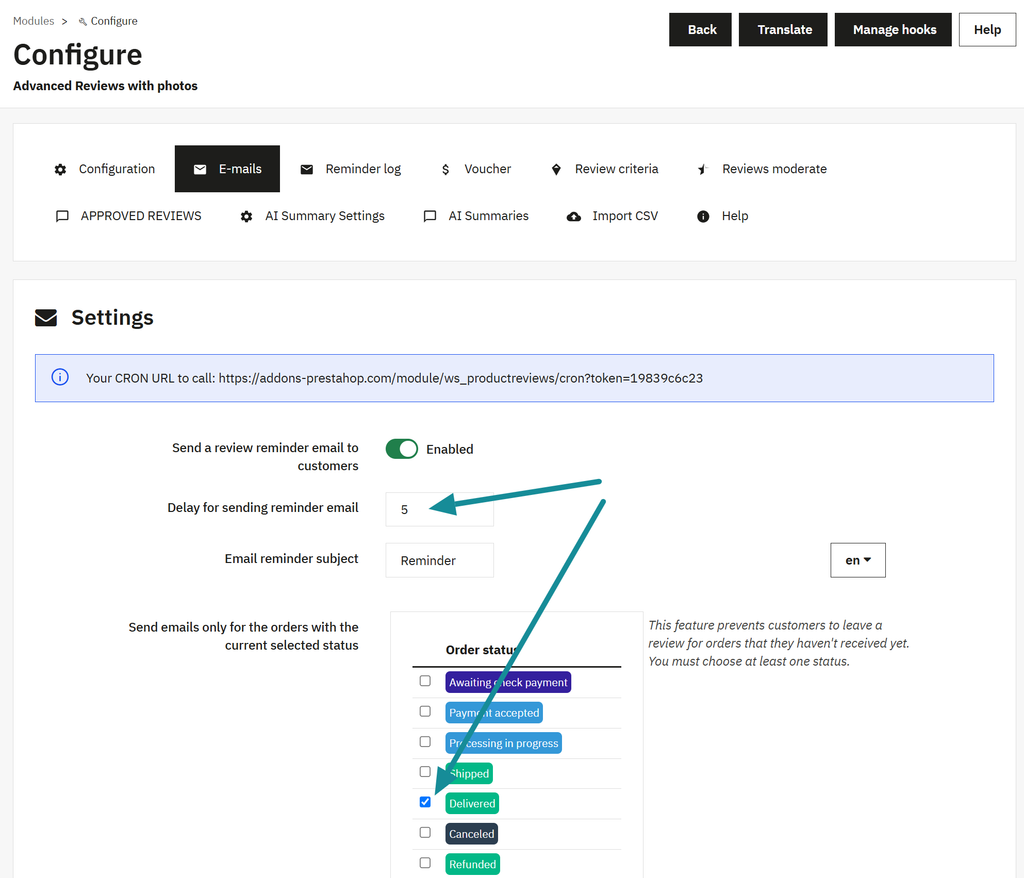
These settings do two separate jobs:
- The delay determines when an order becomes old enough for a reminder.
- The selected status determines whether sending is allowed when the scheduled task checks it.
Five days does not mean five days after delivery.
The delay starts when the order enters the reminder queue, normally when the order is created or confirmed.
Suppose an order enters the queue on November 1 and changes to Delivered on November 8. With a five-day delay, the waiting period has already passed. The reminder can be sent on the next scheduled run after delivery; it does not wait until November 13.
That distinction is worth understanding before choosing your settings.
Set up automatic review reminders
Open the module configuration and select the E-mails tab.
Enable Send a review reminder email to customers, then configure the following fields.
Delay for sending reminder email
Enter the number of days to wait. In our example, this is 5.
Email reminder subject
Choose a subject that explains the request. For a shop called Clay Studio, I would use something simple like “How was your order from Clay Studio?”
Allowed order statuses
Select at least one status. For this example, select Delivered and leave payment-pending, cancelled and refunded statuses unselected.
The module checks the latest order status before automatic sending. Make sure your store actually updates orders to the status you choose.
Save the settings.
Next, configure a scheduled task to call the CRON URL displayed on this page. This is what runs the automatic reminder checks. Your hosting control panel may provide a scheduler, or your hosting support can help configure one.
Simply enabling reminders does not schedule that task for you. The schedule also affects when an eligible reminder is sent: it waits until the next run.
What the customer receives
The reminder template includes the shop logo, the customer’s name and the order number.
It thanks the customer for their purchase and invites them to rate the products once they have received them.
There are two ways to continue:
- A main link to a page for reviewing the products from that order.
- Individual links to the purchased products.
The shared page is useful when an order contains several items. The customer can review them together instead of finding each product separately.
Customers need to sign in to submit their reviews. The email brings them back to the relevant products, but it is not a login-free review form.
I would keep the request focused on their experience. Ask for an honest review rather than a particular star rating. The point is to collect useful feedback for both your store and future shoppers.
Test the process with a new order
Before relying on automatic reminders, I would place a new test order using an email address I control.
An order with two different products makes it easier to check the shared review page.
First, confirm that PrestaShop can send a standard test email from its email settings. Review reminders use the store’s mail system, so a general sending problem needs to be fixed first.
Then check the complete flow:
- Confirm that the new order appears in Reminder log.
- Check that its status is one you allowed.
- Wait until the configured delay has passed.
- Confirm that the scheduled task runs and the email arrives.
- Open the review link, sign in if needed and submit a review.
- Check the review in the back office and its publication status.
The module also provides a Send Reminders bulk action for manual sending. This is useful for checking the email and customer journey without waiting for the automatic delay.
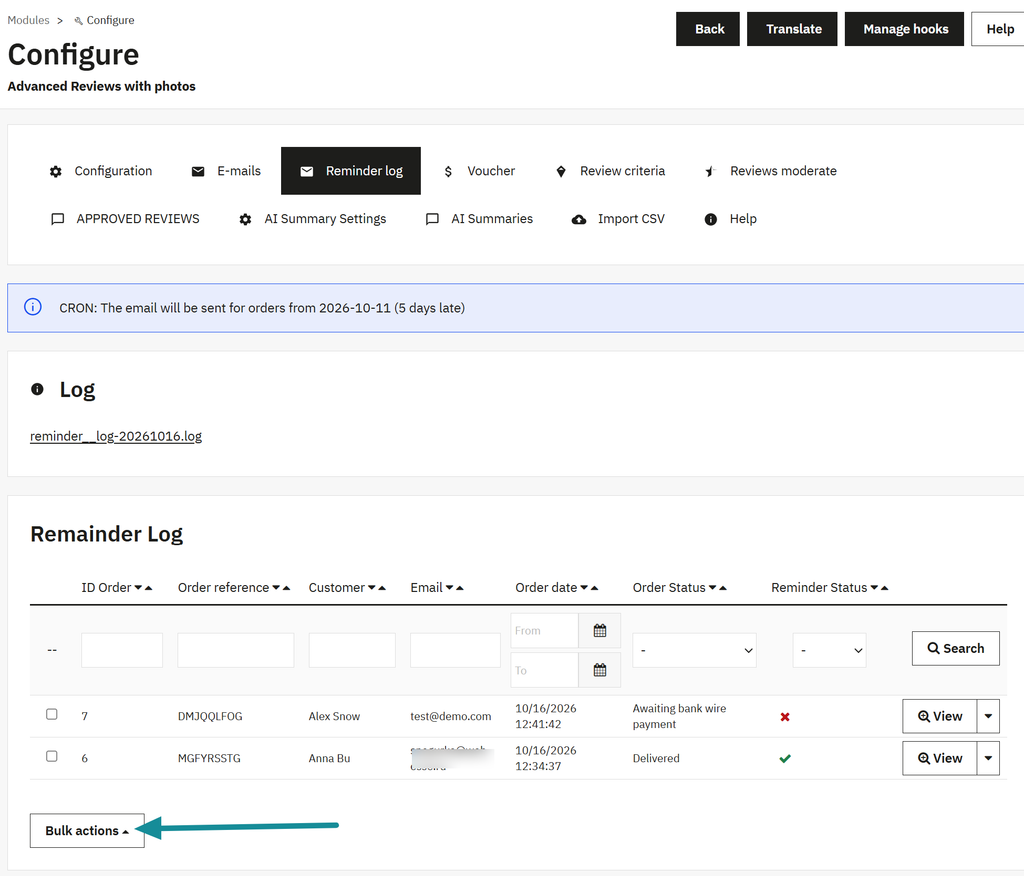
However, manual sending does not use the same delay and status checks. A successful manual test does not prove that your scheduled task is configured correctly.
What to check if reminders are not arriving
Start with the simplest explanation.
| What you see | What to check |
|---|---|
| No reminder for a recent order | The configured delay may not have passed yet. |
| The delay has passed, but nothing is sent | Check the latest order status and whether CRON is running. |
| The order is missing from Reminder log | Confirm that reminders were enabled when you placed the test order. |
| PrestaShop’s standard test email also fails | Check the store’s mail configuration and the mail server’s response. |
| The reminder is marked as processed, but no email arrives | Check mail logs, spam folders and the actual recipient address. |
A processed reminder is not proof that the message reached the customer’s inbox.
For example, a mail-server rejection will not be fixed by changing the reminder delay. Check basic email delivery before investigating the review form.
Give customers a clear route back
A useful reminder connects a completed purchase with a straightforward request for feedback.
For this setup, the essentials are a sensible delay, an appropriate order status, a working scheduled task and an email that takes customers back to their purchased products.
You can find the full feature list and the link to PrestaShop Addons on the Advanced Product Reviews page.
And once your products have enough feedback that shoppers struggle to read it all, AI review summaries can help them see recurring themes while keeping the original reviews available.